MinIO Access Documentation
Purpose
This documentation provides step-by-step instructions for accessing the MinIO web interface at https://minio.dev.heatvr.io, logging into the system, and browsing objects stored in the MinIO S3-compatible storage.
Pre-requisites
Before proceeding, ensure that you have the following:
- A web browser (e.g., Google Chrome, Mozilla Firefox, Microsoft Edge).
- Valid MinIO credentials (Access Key and Secret Key) provided by the administrator.
- Network access to
https://minio.dev.heatvr.ioCurrently, the HEAT development environment does not require a VPN. However, for certain environments or clients, a VPN may be configured, so access requirements may vary depending on the organization’s network setup
Accessing the MinIO Web Interface
-
Open your web browser.
-
Navigate to the following URL:
https://minio.dev.heatvr.io -
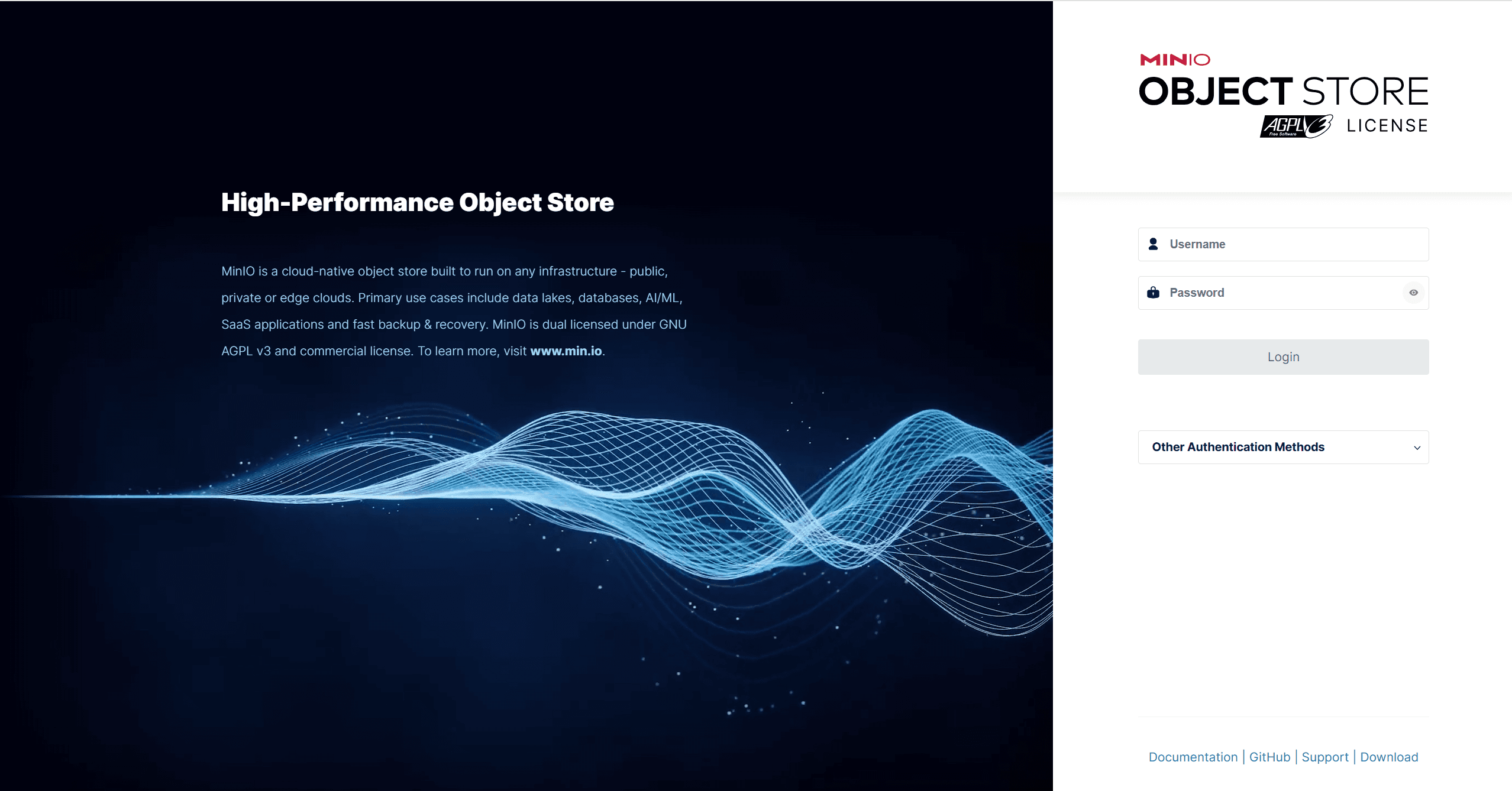
You will be redirected to the MinIO login page, which typically looks like this:
- Access Key field (Username)
- Secret Key field (Password)
- A “Log In” button
Logging In to MinIO
On the login page:
- Enter your Access Key (provided by the admin).
- Enter your Secret Key.
- Click the “Sign In” button.
Note: If your credentials are incorrect, you will receive an authentication error. Please double-check the access and secret keys, and contact support if the issue persists.
Navigating the MinIO Dashboard
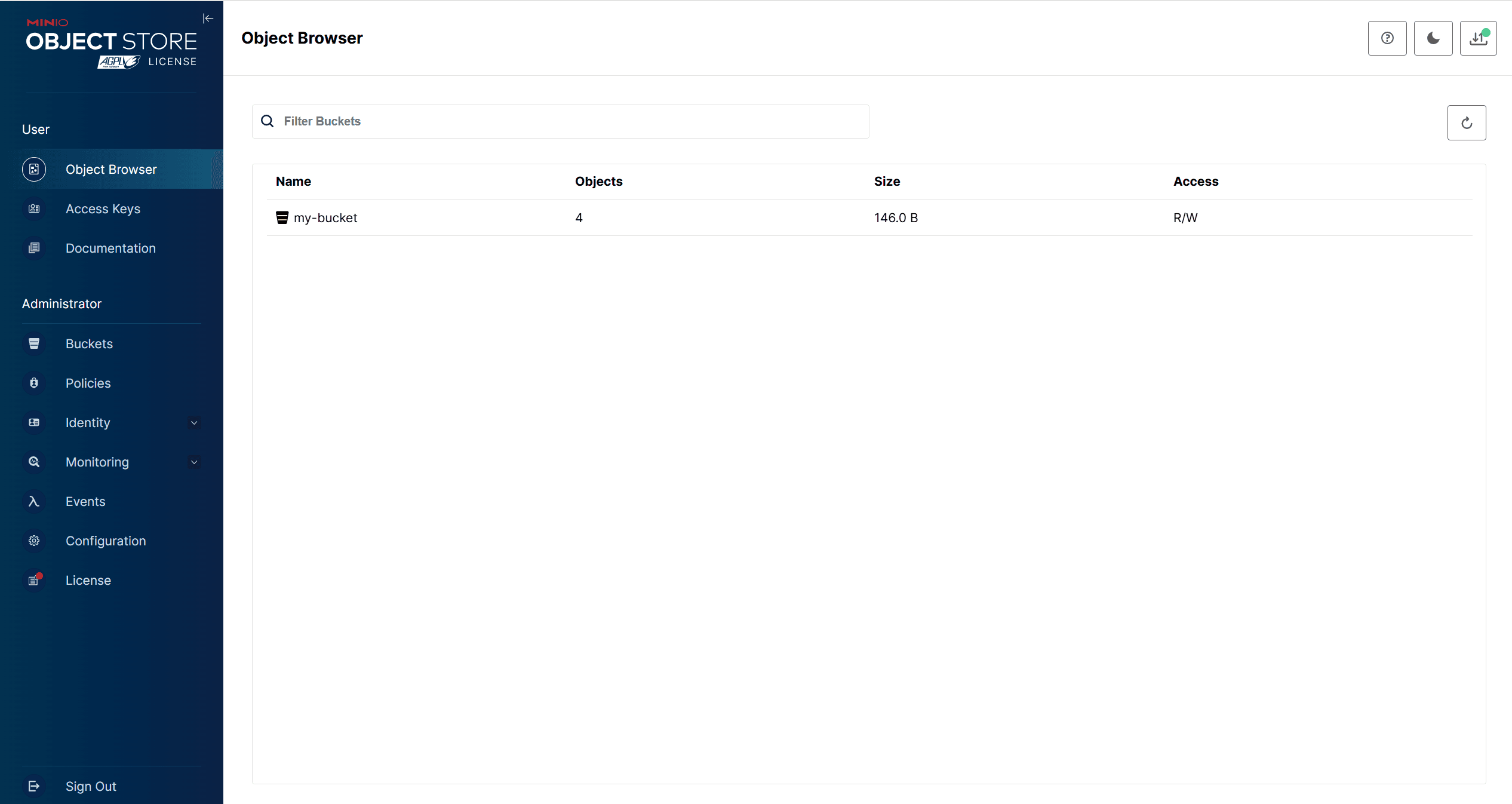
Once logged in, you will be directed to the MinIO Browser UI, which presents a graphical interface for interacting with object storage.
Key Features You Will See:
- Buckets: Containers for storing objects (like folders)
- Search bar: To locate a specific object by name
- Upload/Download options: Buttons to manage files
- Action menu (⋮): Options to delete, rename, share, or manage permissions for files and buckets
Viewing Stored Objects
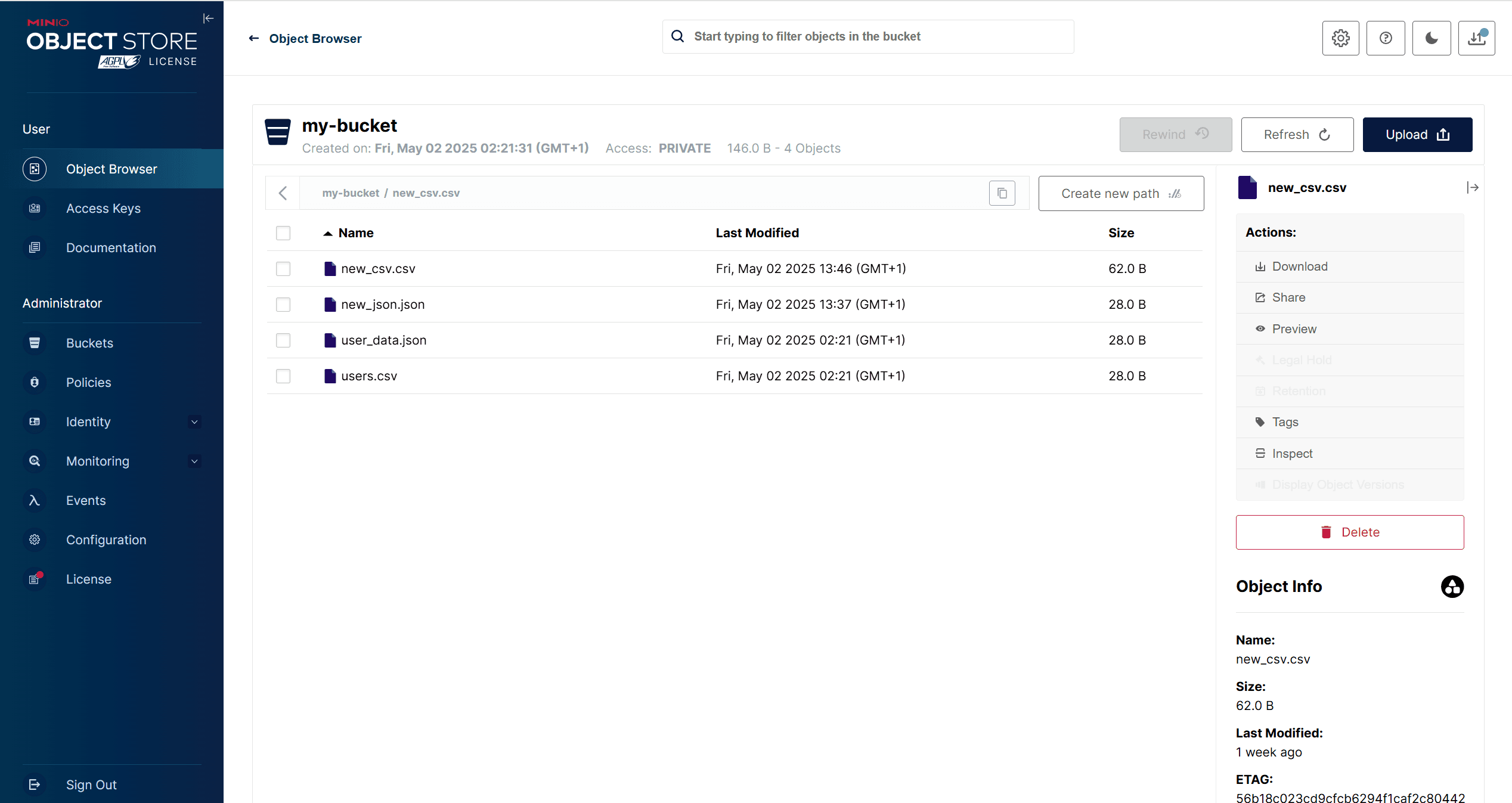
- Click on a bucket name to enter it.
- Inside the bucket, you will see a list of objects stored (e.g., files, directories).
Each object typically displays:
- Name
- Size
- Last modified date
You can:
- Download an object by clicking the download icon
- Preview certain file types if supported
- Check object details via the right-click context menu or action menu