Application telemetry with Grafana
Introduction
Many organizations rely on cloud provider services (like Azure Monitor, AWS CloudWatch, or Google Cloud Logging) for application log collection and visualization. In on-prem, a self-hosted stack gives us full control and data ownership. Looking at the future we want to detach our solutions from any those providers.
Key benefits of an on-premises logging solution:
- Cost Control: Avoid or reduce the high ingestion and storage fees of cloud logging services by using your own infrastructure.
- Data Ownership: Keep log data within your own environment for compliance or security reasons, rather than sending it to third-party cloud systems.
- Flexibility: Integrate logs from multiple sources (on-premises and various clouds) into one central platform (Grafana) without being tied to a single cloud provider’s tools.
Architecture Overview
The on-premises logging stack consists of three main components working together in a Kubernetes environment: Grafana (UI), Loki (log storage), and Grafana Alloy (data collector). Together, these components replace the need for cloud logging services.
- Grafana: Visualization and dashboard platform. Grafana connects to Loki as a data source to retrieve log data.
- Loki: Log aggregation system that stores and indexes application logs by labels (no full-text indexing). Exposes HTTP APIs for ingestion and querying.
- Grafana Alloy: An OpenTelemetry-based collector that runs on each node (via DaemonSet) and tails Kubernetes pod logs, forwarding them to Loki.
Logs flow as follows:
- Applications write logs to stdout or files.
- Alloy agents on each node collect those logs, attach Kubernetes metadata labels, and push to Loki’s HTTP ingestion API.
- Loki compresses, indexes labels, and stores log data on disk (or object storage).
- Grafana queries Loki (using LogQL) to visualize and explore logs in dashboards or via the Explore view.
Diagram:
[ Apps / Pods ] → (stdout/log files)
    ↓
[ Alloy ] → (Loki HTTP Push API)
    ↓
[ Loki Monolithic Service ] → (index + storage)
    ↓
[ Grafana ] → (LogQL queries) → [Explore / Dashboards]
Grafana Setup on HEAT
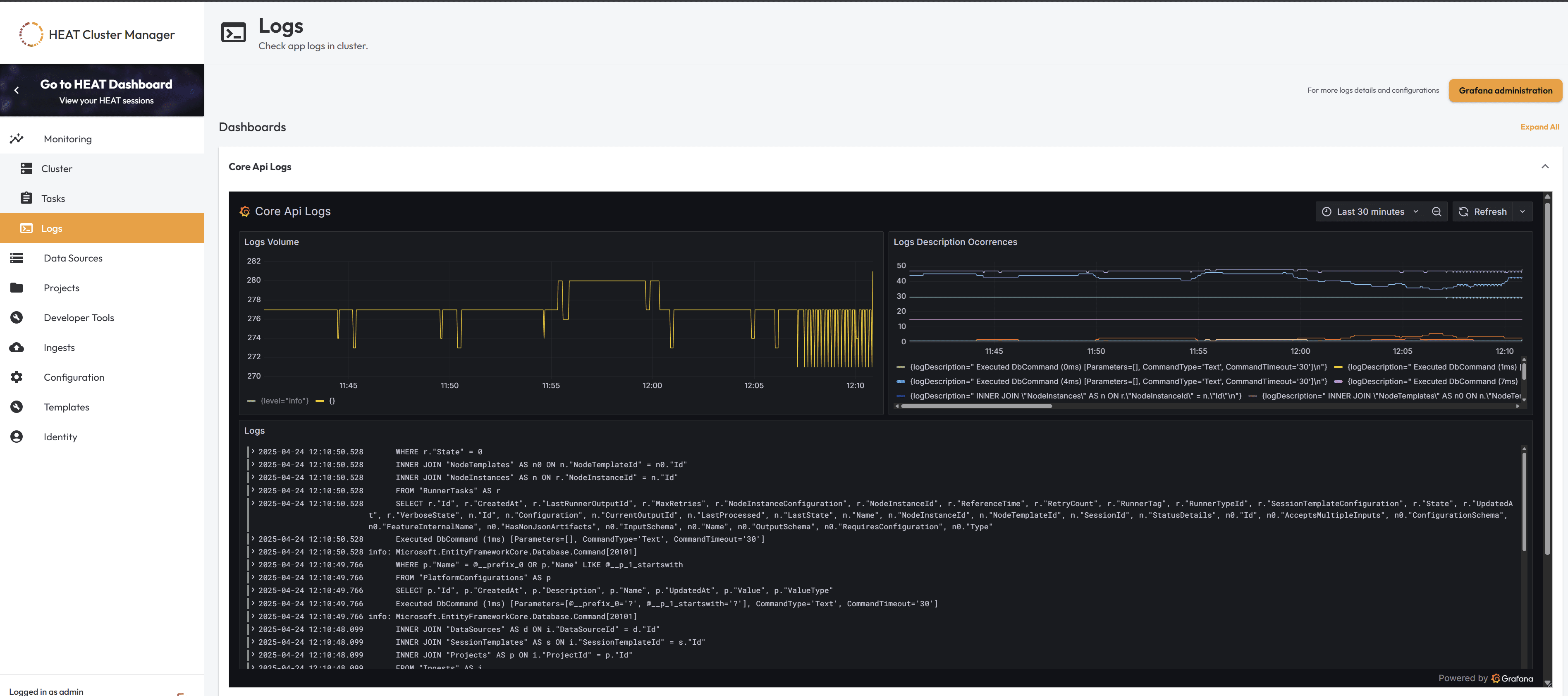
After alloy/loki/grafana installation we can now check our app logs at Grafana.
To make our life easier we included the grafana dashboards in Cluster Manager, but for each new tenant or environmment we need to follow same instructions:
Steps
1. Enable embedding in Grafana
Edit your Grafana deployment’s environment variables to allow embedding:
env:
  - name: GF_SECURITY_ALLOW_EMBEDDING
    value: "true"
2. Configure Grafana in PlatformConfiguration
2.1. Generate a public link for a Grafana dashboard
- In Grafana, open the desired dashboard, click the Share button and select Share Externally.
- Enable Time range if desired.
- Copy the external link, which will look like:
http://<GRAFANA_DOMAIN>/grafana/public-dashboards/<DASHBOARD_ID>2.2. Add Grafana settings to PlatformConfiguration (core-api)
Use the Core API POST /api/config endpoint to set your Grafana Base URL and dashboard paths.
Base URL:
{
  "name": "monitoring.Grafana.BaseUrl",
  "valueType": 0,
  "value": "http://<MONITORING_DOMAIN>/grafana",
  "description": "Base URL for Grafana",
  "createdAt": "2025-04-23T08:58:04.646Z",
  "updatedAt": "2025-04-23T08:58:04.646Z"
}
Dashboard entry (repeat for each dashboard):
{
  "name": "monitoring.Grafana.Dashboards.CoreApi",
  "valueType": 0,
  "value": "/public-dashboards/<DASHBOARD_ID>",
  "description": "Core API Logs Dashboard",
  "createdAt": "2025-04-23T08:58:04.646Z",
  "updatedAt": "2025-04-23T08:58:04.646Z"
}
After adding all desired dashboards, your monitoring configuration should resemble:
{
  "monitoring": {
    "Grafana": {
      "BaseUrl": "http://<MONITORING_DOMAIN>/grafana",
      "Dashboards": {
        "CoreApi": "/public-dashboards/<DASHBOARD_ID>",
        "HeatAuth": "/public-dashboards/<DASHBOARD_ID>",
        "HeatScheduler": "/public-dashboards/<DASHBOARD_ID>",
        "LegacyRunner": "/public-dashboards/<DASHBOARD_ID>",
        "V1ExternalApi": "/public-dashboards/<DASHBOARD_ID>"
      }
    }
  }
}
2.3. Check settings in Cluster Manager
Verify that the configuration is correctly reflected in the Cluster Manager UI or backend configuration.
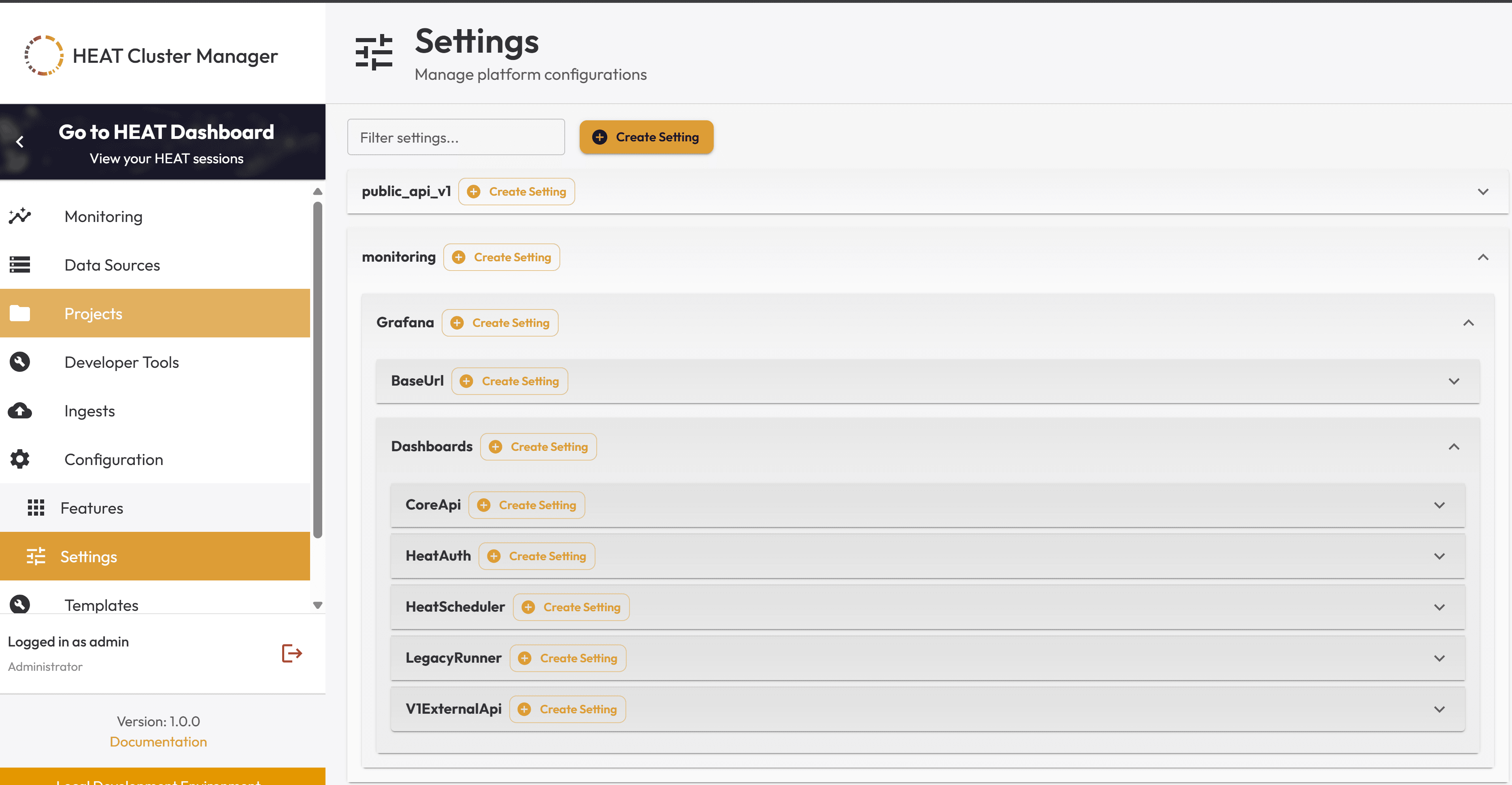
3. Verify in Cluster Manager
Open the Logs page in the Cluster Manager. Embedded Grafana dashboards should appear inline where configured.
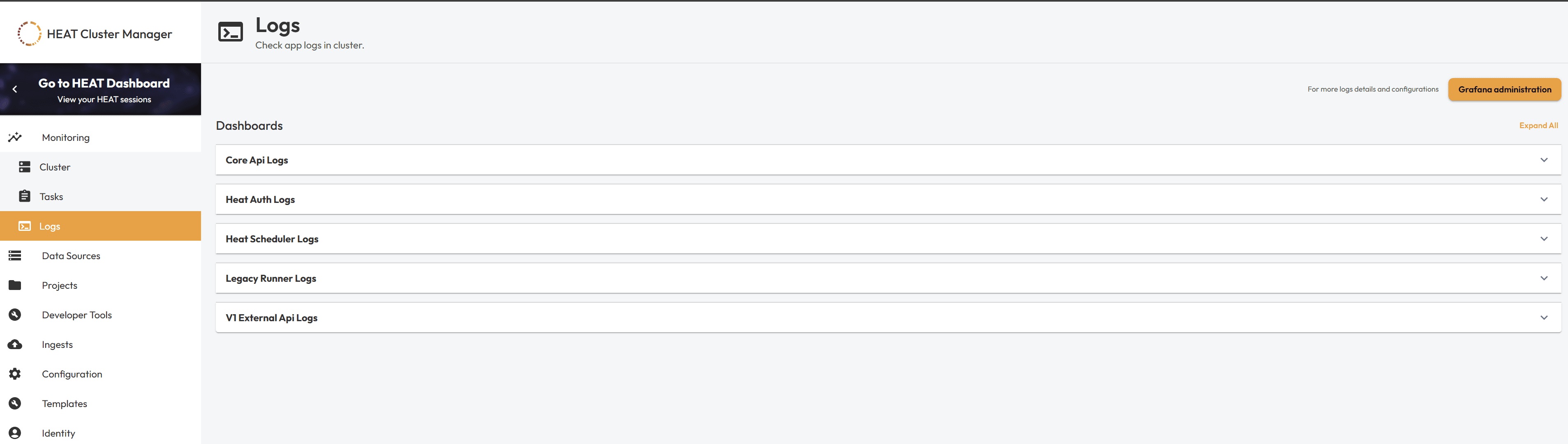
Core API Logs dashboard expanded.